Lists
Simple structured data — contacts, inventory, tasks — that your agent can read and update.
What It Does
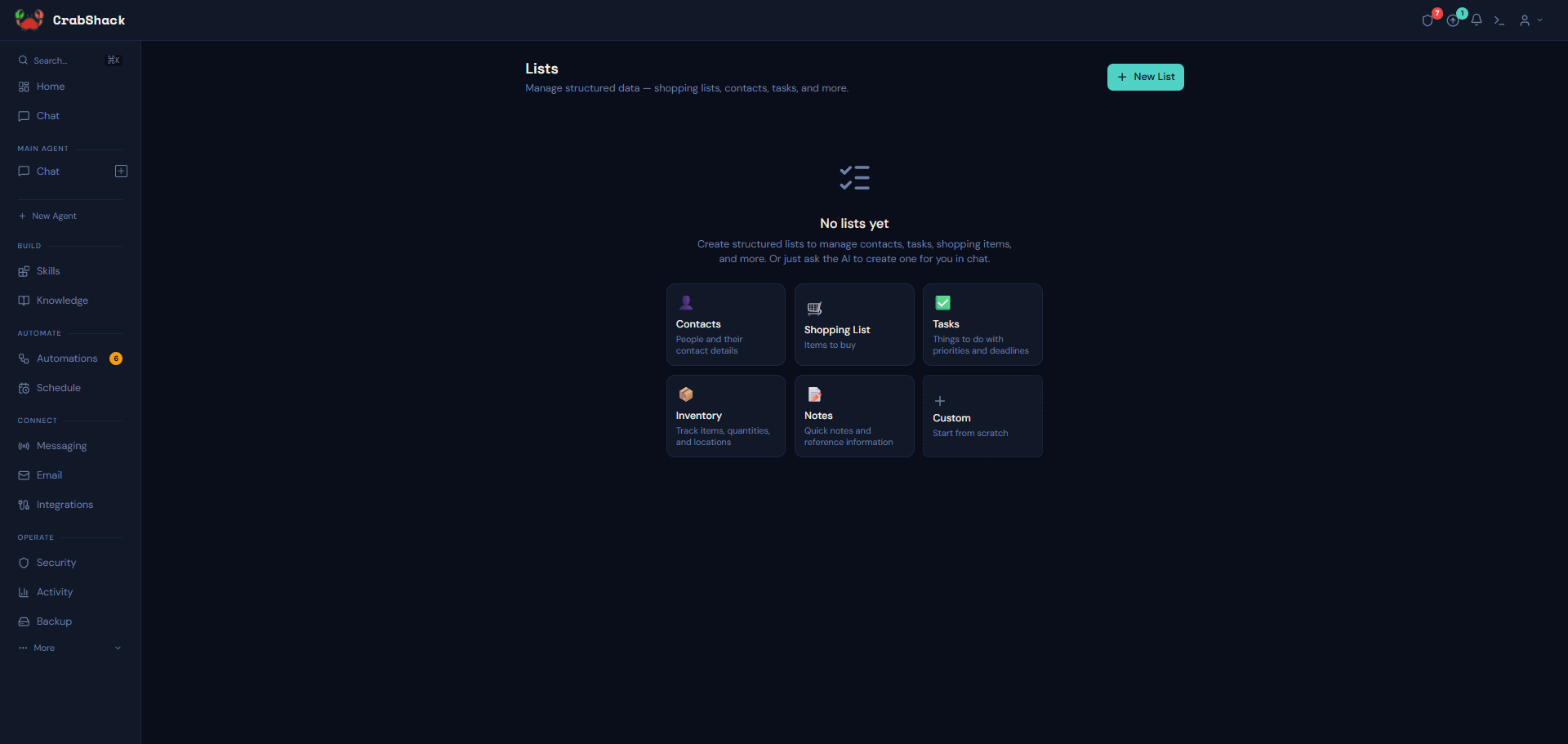
Lists are tables you define yourself: name it, add columns (text, number, yes/no, or date), and start adding rows. They work well for anything you'd normally track in a spreadsheet — a customer list, a stock/inventory count, a set of open tasks.
Why It Matters
Because your agent can see and update the same lists, you get a simple shared record between you and your agent — it can add a row when it takes an action, or you can hand it a list and ask it to work through the rows.
How to Create a List
- Open Lists in the sidebar (under More).
- Click to create a new list — start from a template, or build one from scratch by naming it and adding columns.
- Add rows directly in the table, editing any cell inline.
A trades business keeps a "Callbacks" list with columns for customer name, phone number, job type, and a done/not-done column. As their booking agent handles calls, it adds a row for each callback needed; the owner reviews the list each morning and ticks off completed ones.
Asking Your Agent to Use a List
You don't have to build a list by hand — you can ask your agent in chat to create one for you (for example, "make me a list of this week's deliveries with an address and a delivered column"), and it will set up the columns and start adding rows as you go.
If This Goes Wrong
- A list looks empty after your agent says it added something — refresh the Lists page; updates made from a conversation don't always appear instantly.
- You want to start over — you can clear or delete a list from its settings and rebuild it from a template or from scratch.
Related
- Agents
- Memory & Knowledge — for reference documents rather than structured rows