Usage & Budgets
What It Does
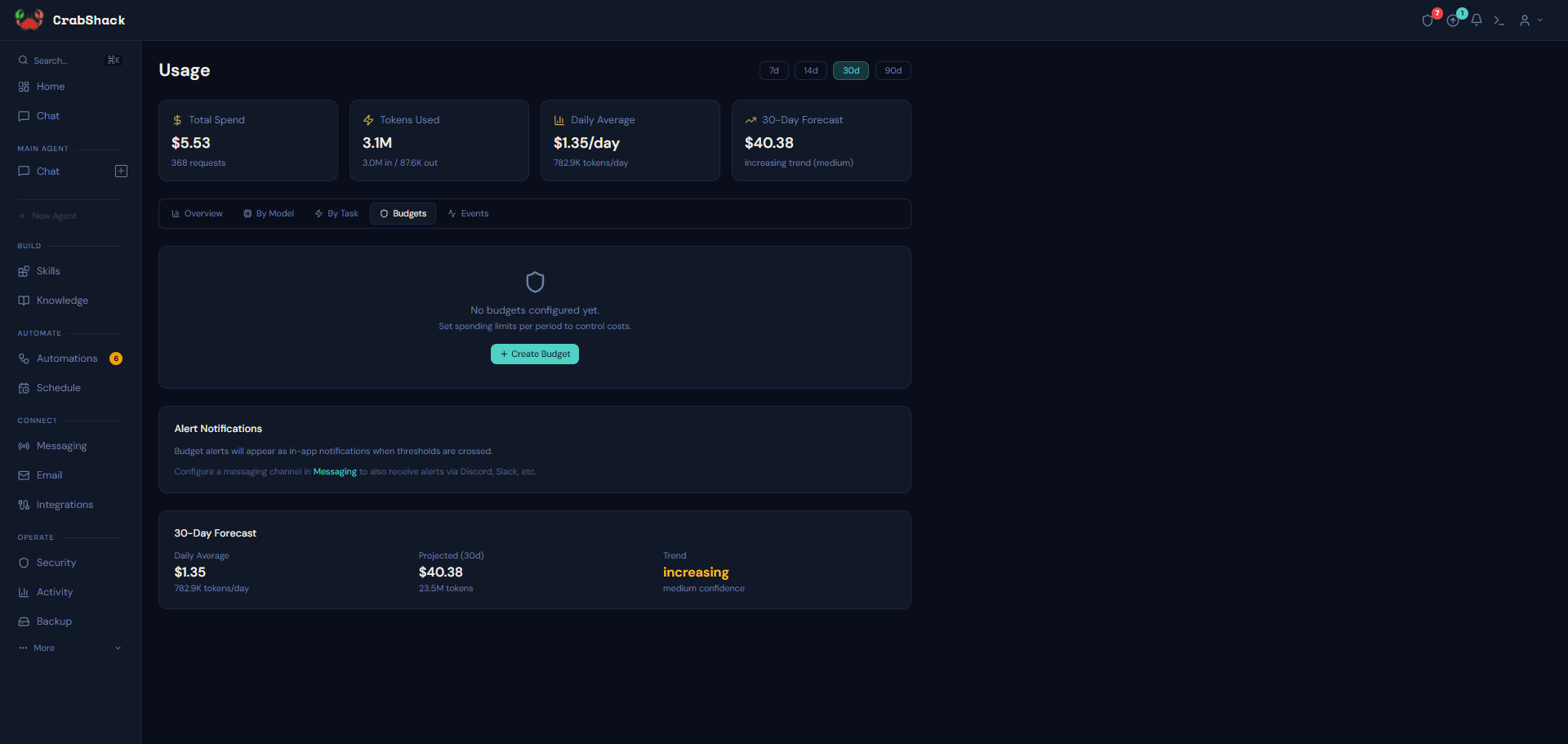
The Usage page (under More) shows what your agents are actually spending on AI — broken down by model, by task, and by agent — plus a request-level log you can export. It's also where you set budgets: spending caps that can alert you, or actually stop AI requests once a limit is hit.
Why It Matters
AI costs scale with usage, and it's easy to lose track of which agent or task is driving spend. Budgets let you set a ceiling in advance instead of finding out at the end of the month.
Reading Your Usage
Usage is broken into tabs: an overview, a per-model breakdown, a per-task breakdown, your budgets, and a raw event log (exportable as CSV) for every priced request.
Setting a Budget
- Open Usage, go to the Budgets tab, and create a new budget.
- Choose a scope — global (everything), a specific agent, a specific channel, or a specific task type.
- Choose a period — hourly, daily, or another interval — and a spending limit.
- Set an alert threshold (a percentage of the limit) — you'll get a notification when spend crosses it.
- Decide whether to enforce the budget. If enforced, AI requests are blocked once the limit is exceeded, until the period resets or you raise the limit. If not enforced, you'll only get an alert — nothing is blocked.
A small retailer sets a global daily budget of $10 with a 90% alert threshold but leaves Enforce off — they want a heads-up if spend spikes, but don't want their agent to suddenly stop responding to customers mid-conversation. A different, experimental agent used for internal testing gets its own enforced budget, so a runaway test can't rack up unexpected charges.
Turning on Enforce is a real tradeoff — it protects you from surprise bills, but it will stop your agent from responding once the limit is hit. Start with alerts only until you have a feel for normal spend, then enforce once you're confident in the limit.
Keep in mind what this looks like from your customer's side: if an enforced budget is hit mid-conversation, whoever is messaging your agent on WhatsApp, email, or any other channel simply stops getting replies — they aren't told why. You (the owner) get the alert notification described above, but your customer doesn't see anything equivalent. Set enforced limits with enough headroom that this is unlikely to happen during business hours.
A Second Usage Page: Activity
There's a separate Activity page that shows a different number — your OpenRouter account's own credit balance, spend, and purchase history (with a Buy Credits link). Think of it this way: Usage is CrabShack's internal view of what your agents are spending and lets you set budgets; Activity is your OpenRouter account's own billing view. If the two don't match exactly, Activity (OpenRouter's own numbers) is the authoritative one for anything you're billed directly by OpenRouter.
If This Goes Wrong
- An agent suddenly stops responding — check Usage → Budgets for an enforced budget that's been hit; raise the limit or wait for the period to reset.
- Usage numbers and Activity numbers don't match — this is expected if you use non-OpenRouter models (local, Ollama Cloud, ChatGPT) alongside OpenRouter ones, since Activity only reflects OpenRouter billing.
Related
- Models & Services — where the models being billed come from