Connecting Channels
What It Does
Channels are how customers actually reach your agents — WhatsApp, Telegram, Discord, Slack, or Microsoft Teams. Connecting a channel lets people message your agent there directly, the same way they'd message any contact or bot.
Connecting a Channel
-
Open Messaging in the sidebar.
-
Under Available, click Connect on the channel you want.
-
WhatsApp connects by scanning a QR code — no setup steps needed:
- Click through to the Allowed Users step (see below), then Enable WhatsApp.
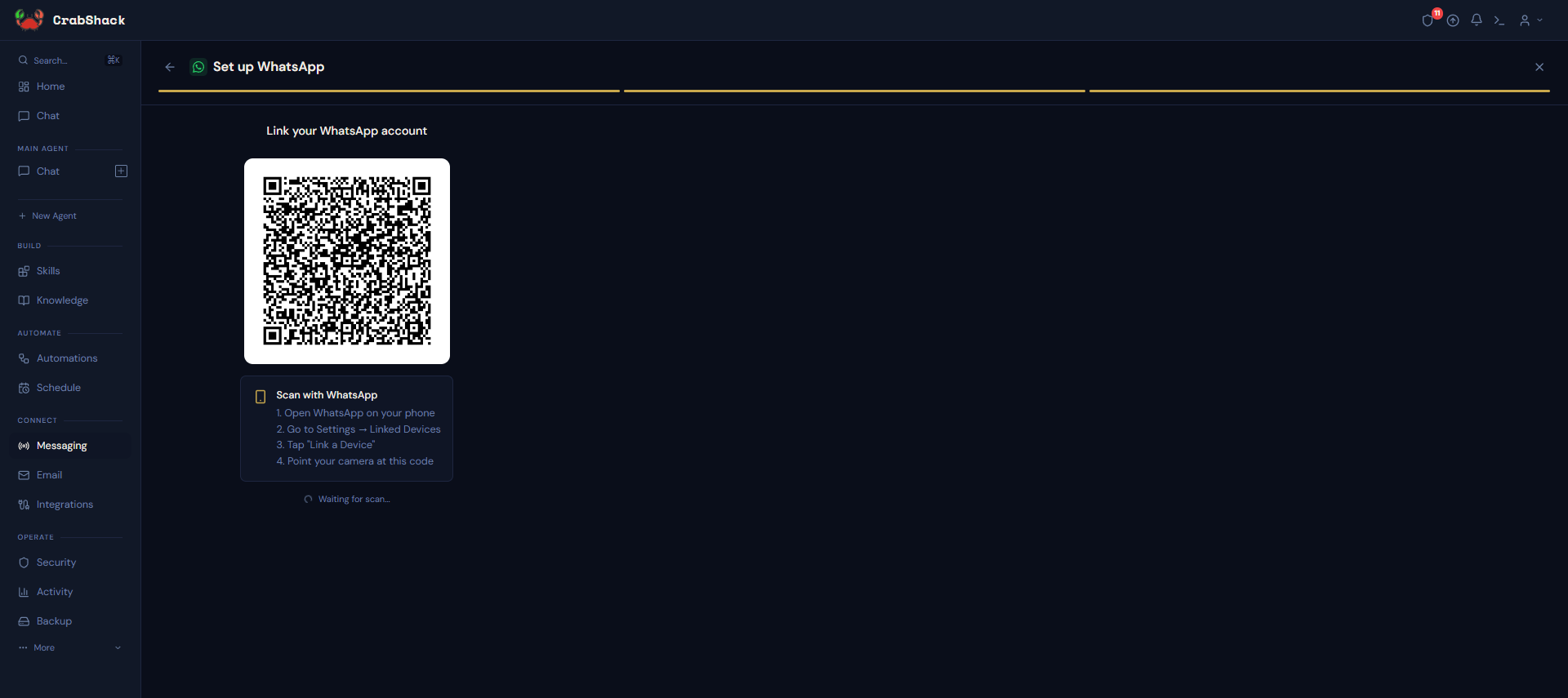
- A QR code appears. Open WhatsApp on your phone, go to Settings → Linked Devices → Link a Device, and point your camera at the code.
-
Discord, Slack, Telegram, and Microsoft Teams connect with a bot token or app credentials instead of a QR code. Each shows its own step-by-step instructions with a link to the right place in that platform (for example, "Open BotFather in Telegram") and a field to paste the token or credentials it gives you.
Every channel then goes through the same two steps:
- Allowed Users — restrict who can direct-message the bot by phone number, username, or ID, or leave it open to allow anyone.
- Groups & Channels — choose whether the agent responds in any group it's added to (Open), only in ones you specify (Allowlist), or never (Disabled). There's also a toggle to have it reply to every message in a group instead of only when it's directly mentioned.
Review your settings on the final Review & Enable step, then confirm to turn the channel on.
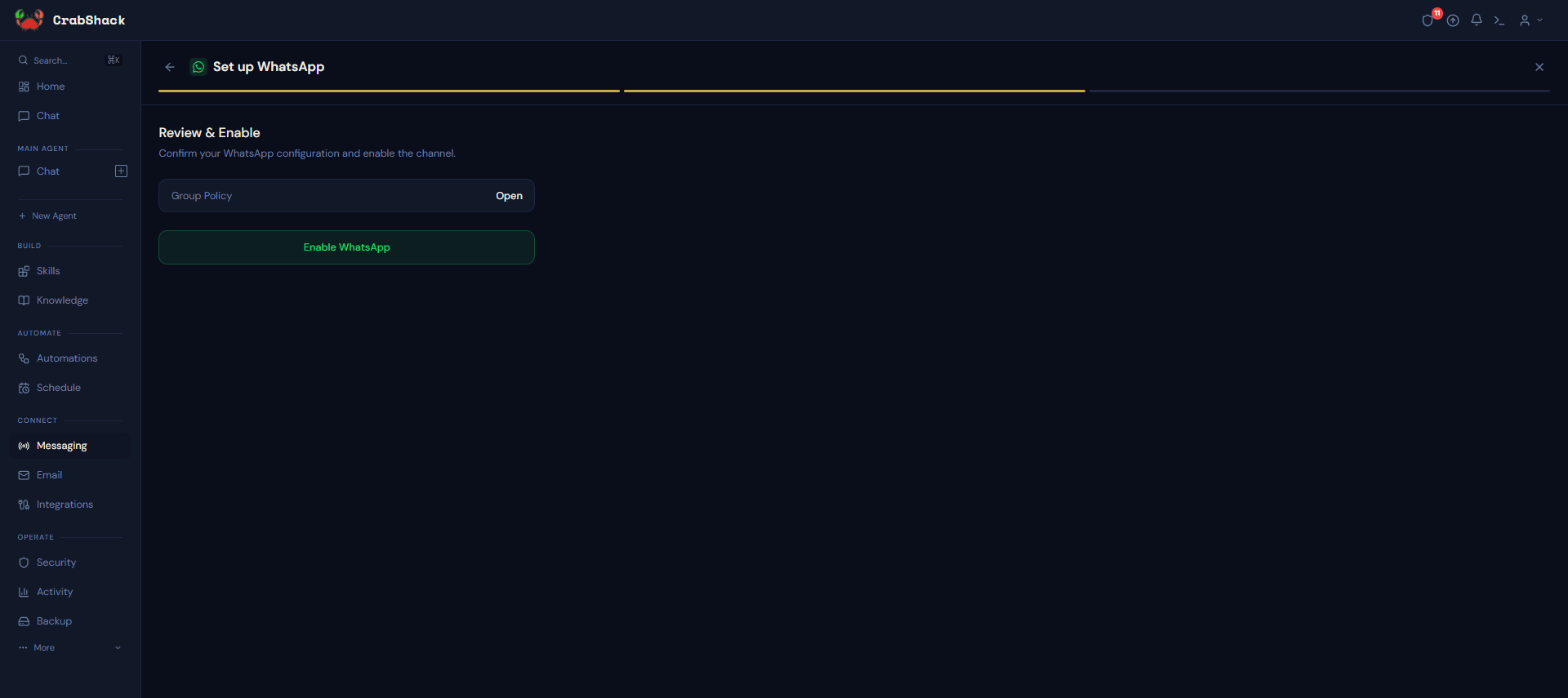
A landscaping business wants customers to be able to text their booking agent on WhatsApp. They open Messaging, click Connect on WhatsApp, leave Allowed Users empty (so any customer can message in), and enable it. They scan the resulting QR code with the business's WhatsApp phone, and from then on, messages to that WhatsApp number reach their agent.
Routing a Channel to a Specific Agent
If you have more than one agent, you decide which one handles each channel (or each group/topic within a channel) from that agent's Config page, under Message Routing. Your main agent receives anything that isn't routed elsewhere by default.
Set up routing after you've created the agent you want to receive that channel's messages — it's easier to point an existing channel at a new agent than to reconfigure the channel itself.