Getting Started with Agents
Creating an Agent
- Click + New Agent in the sidebar.
- Give it a Display Name (for example, "Support Agent"). CrabShack fills in an Agent ID automatically — lowercase letters, numbers, and hyphens only — you can adjust it if you like.
- Under What should this agent do?, either:
- Pick a template that matches the job (see Agent Templates) — this pre-fills the agent's name and instructions, which you can still edit afterward, or
- Click Start from scratch and describe its role in your own words — for example, "Answer customer questions about our menu and take reservations." This becomes the agent's instructions.
- Click Create Agent.
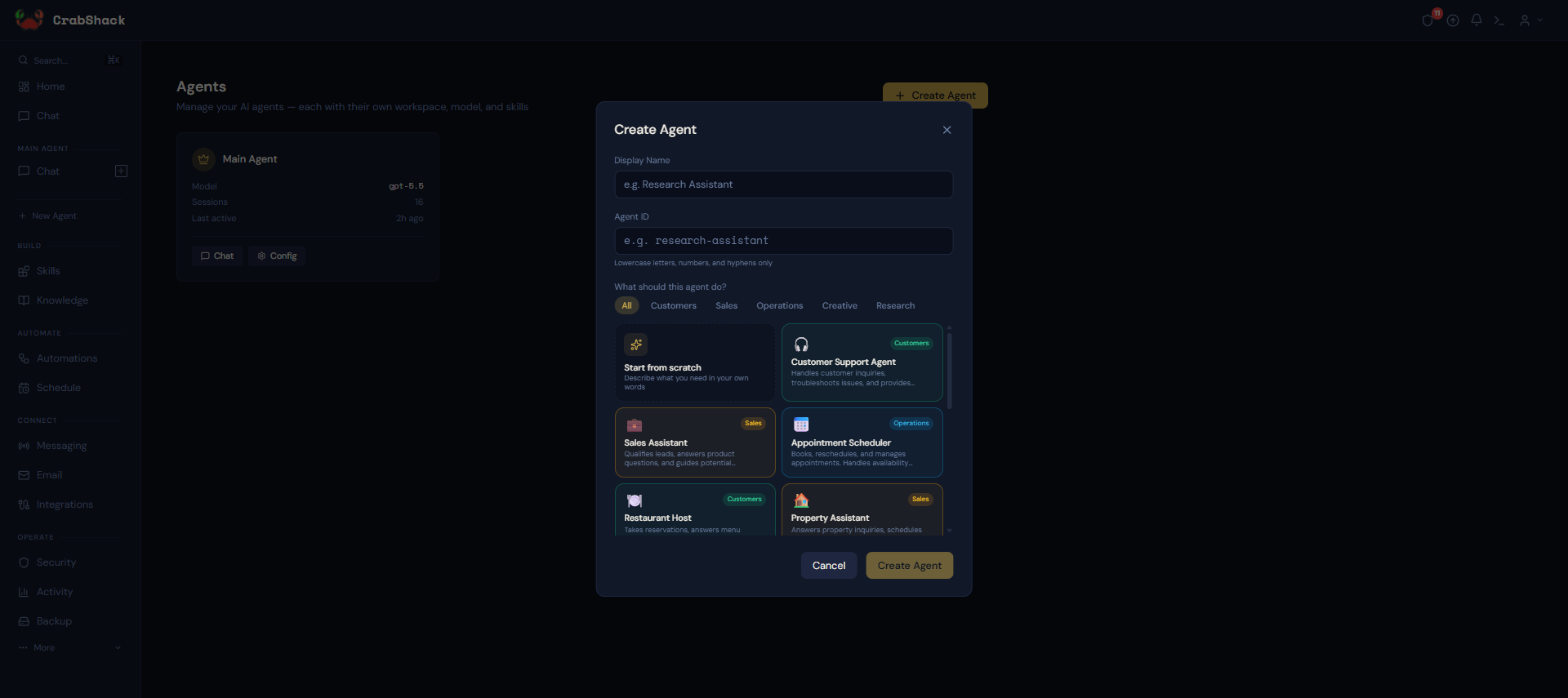
That's it — your new agent appears in the sidebar, ready to chat with directly, and ready to connect to a channel (see Connecting Channels) whenever you're ready.
A cafe owner wants a separate agent just for handling booking requests, so their main assistant isn't cluttered with reservation chatter. They click + New Agent, name it "Reservations," and pick the Appointment Scheduler template from the gallery. The template pre-fills instructions for booking, rescheduling, and checking availability. They click Create Agent, then connect it to their WhatsApp number so booking requests go straight to it instead of the main assistant.
After Creating an Agent
A new agent starts with:
- No MCP connections — if it needs to use a business app you've installed (like your booking or accounting system), you'll need to allow it — see Agent Allowlisting.
- No channels — see Connecting Channels to route a messaging channel to it.
- A default emoji and heartbeat interval — both adjustable from the agent's Config page.
You don't need to fill in every setting right away. A newly created agent is fully usable in chat immediately — connections and channels can be added whenever you're ready.