Schedule Wizard
Creating a Scheduled Job
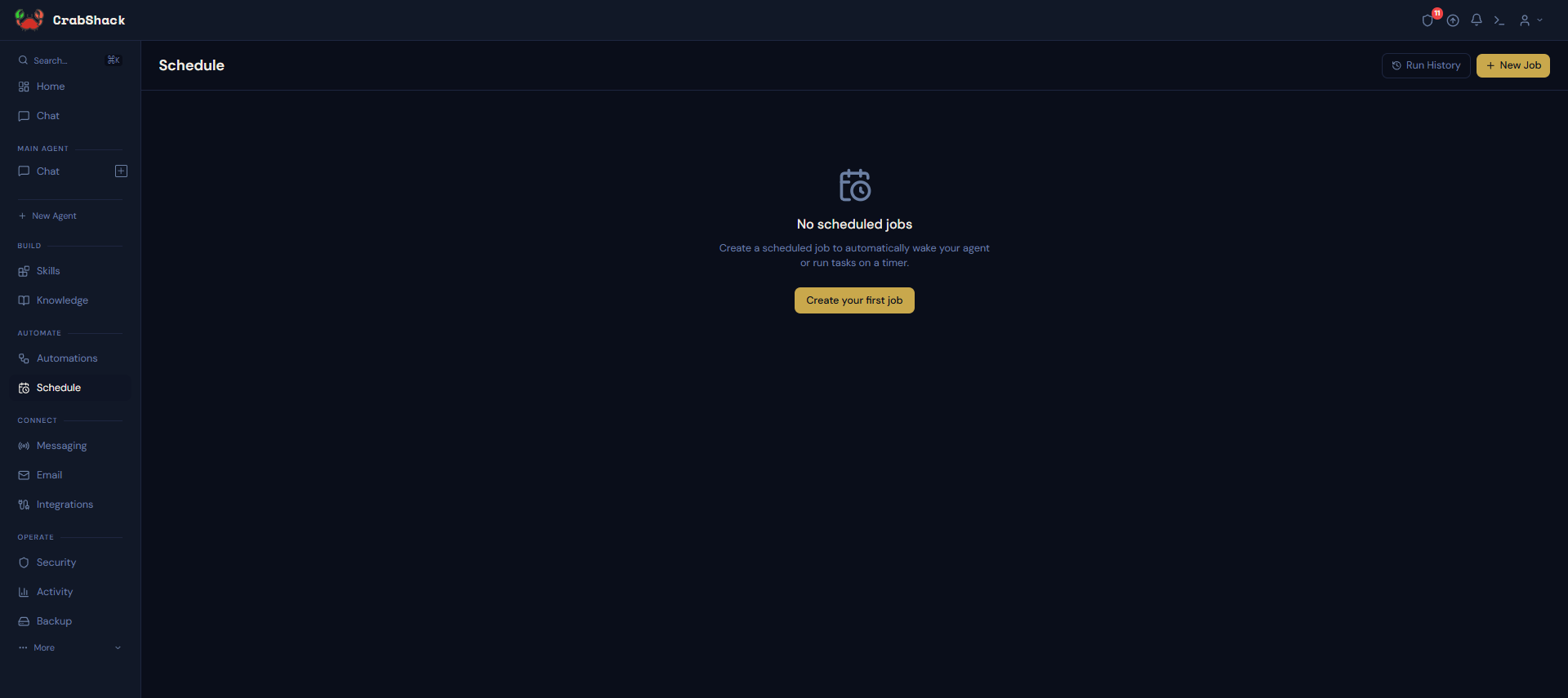
- Open Schedule in the sidebar.
- Click New Job (or Create your first job if this is your first one).
- Pick a prebuilt task template — options like a daily summary or a customer check-in cover the most common needs — or describe a custom task for your agent to run.
- Choose how often it runs: daily, weekdays, weekly, or another frequency. You don't need to know cron syntax — the picker handles it.
- Save. Your job now appears on the Schedule page and will run automatically at the times you set.
Scenario
A shop owner wants a morning recap of yesterday's sales and any unread messages. They create a job from the Daily Summary template, set it to run at 8am every weekday, and save. Each weekday morning, the agent runs the summary and delivers it without anyone needing to ask.
Checking on a Job
Click Run History from the Schedule page to see when a job last ran and what happened.