Building a Workflow
The Canvas
Open a workflow from the Automations page's Library tab (or start a new one) to see its visual canvas — each state is a box, and each arrow is a rule for moving to the next state.
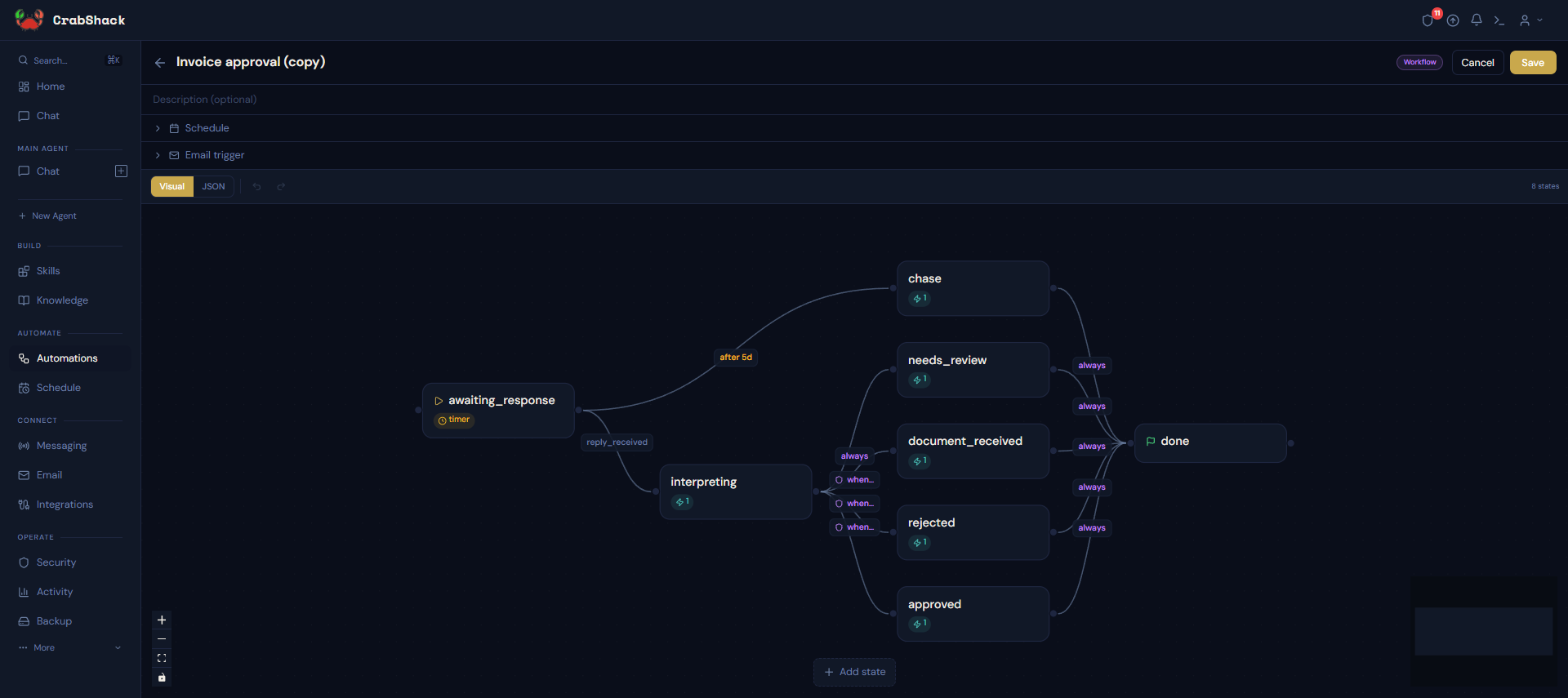
- Click Add state to add a new step.
- Click a state to edit what happens when the workflow arrives there.
- Click an arrow (edge) to edit the rule that triggers that transition, or delete it.
- Toggle between Visual and JSON views — JSON is for advanced users comfortable editing the underlying definition directly.
- Schedule and Email trigger sections above the canvas let you start this workflow on a timer or when a matching email arrives, instead of only starting it manually.
Starting from a Template
Most workflows start from the Library tab's built-in templates (see Workflow Templates) via Customize, which gives you an editable copy to adjust rather than starting from a blank canvas.
Saving and Managing Your Workflows
Once you save a workflow, it appears under Your automations at the top of the Library tab, alongside built-in templates — with buttons to view its diagram, edit it, start it, or delete it.